
Importing the catalogue into Shopify
Two ways in. Import the CSV by hand the first time, then let a scheduled fetch keep prices and stock current. Both use the links on your Feeds page.
Shopify runs a single import job per store. Start the next part before the previous one has finished and you are told an import job is already in progress — which reads like a problem with your file, and is not. Wait until products stop appearing, then continue.
2 432 products with images took over 35 minutes in our test store. Nothing shows a progress bar. You can close the dialog and keep working; the products keep arriving.
Shopify's product CSV has no currency column. Our prices are in euro and land as plain numbers in whatever currency your store is set to. If that is not euro, change it before you import.
Shopify fetches the image files after the row itself has landed, so a product can sit with a broken thumbnail for a while. It fills in on its own. Judge the images an hour after the import, not during it.
We send grams. A 8 440 g case shows as 18.607 lb in a store set to imperial units — the same weight, written differently. Set your weight unit the way your carrier rates expect before you build shipping rates on it.
1. Products, then Import
Open Products in the Shopify admin and press Import. An empty store offers the same button in the middle of the page.
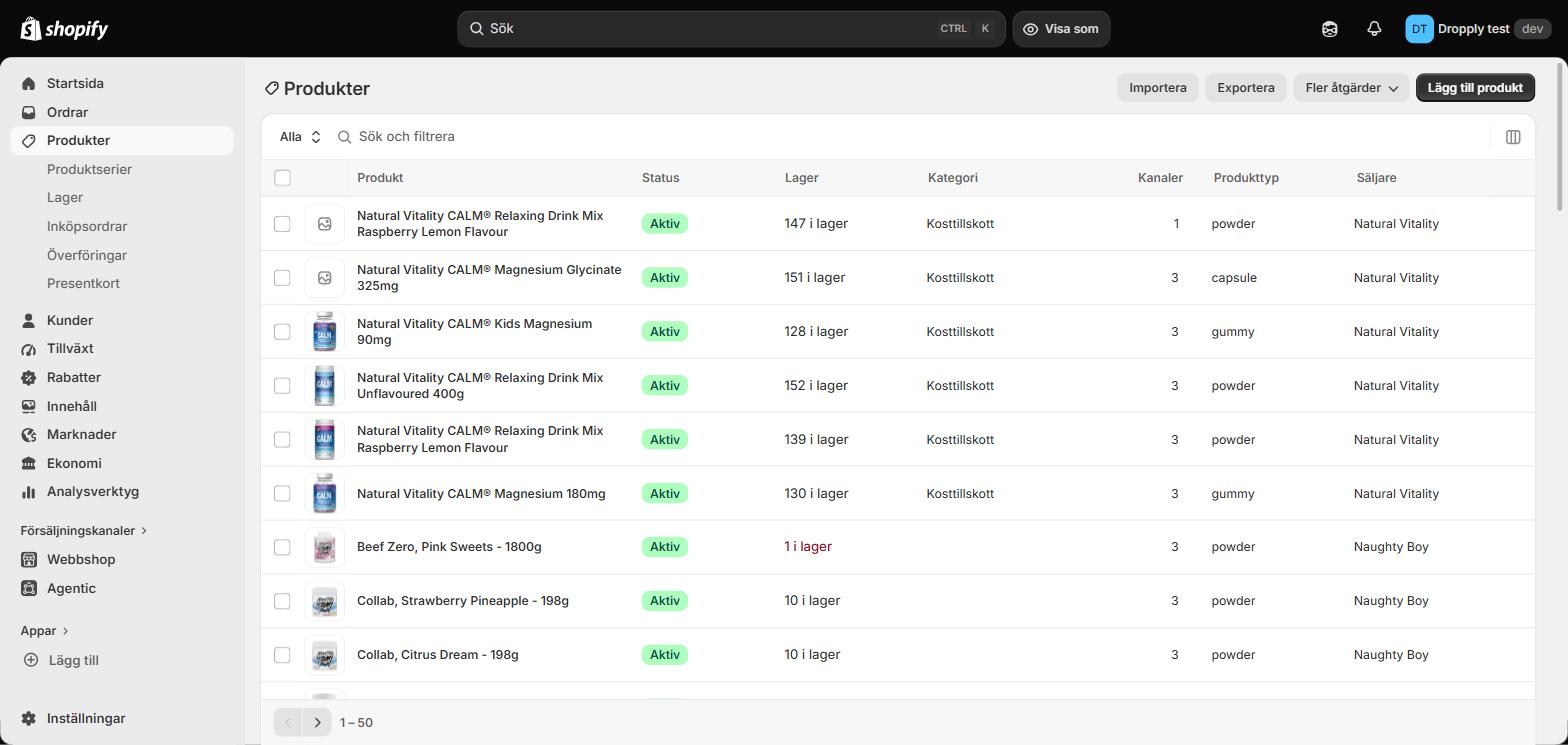
2. Choose the Shopify-formatted CSV
The other option imports from another platform and installs a migration app; you do not need it. Our file already uses Shopify's own column names, so nothing has to be mapped by hand.
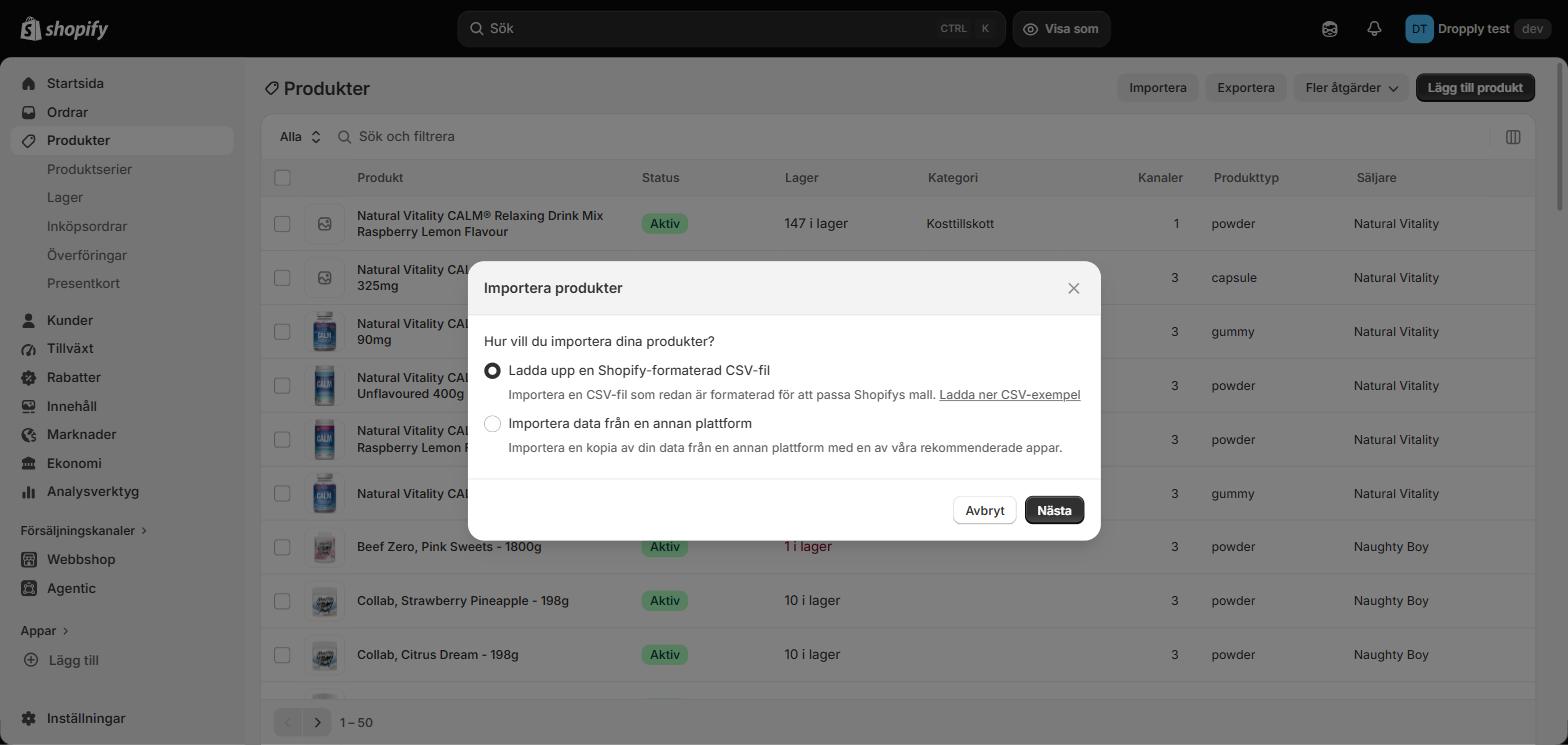
3. Add the file and upload
Use the first numbered part from your Feeds page. Shopify's importer accepts at most 15 MB per file and the full catalogue is larger, which is why it comes in parts.
Leave the publishing checkbox as you prefer. Our file sets every product to active either way.
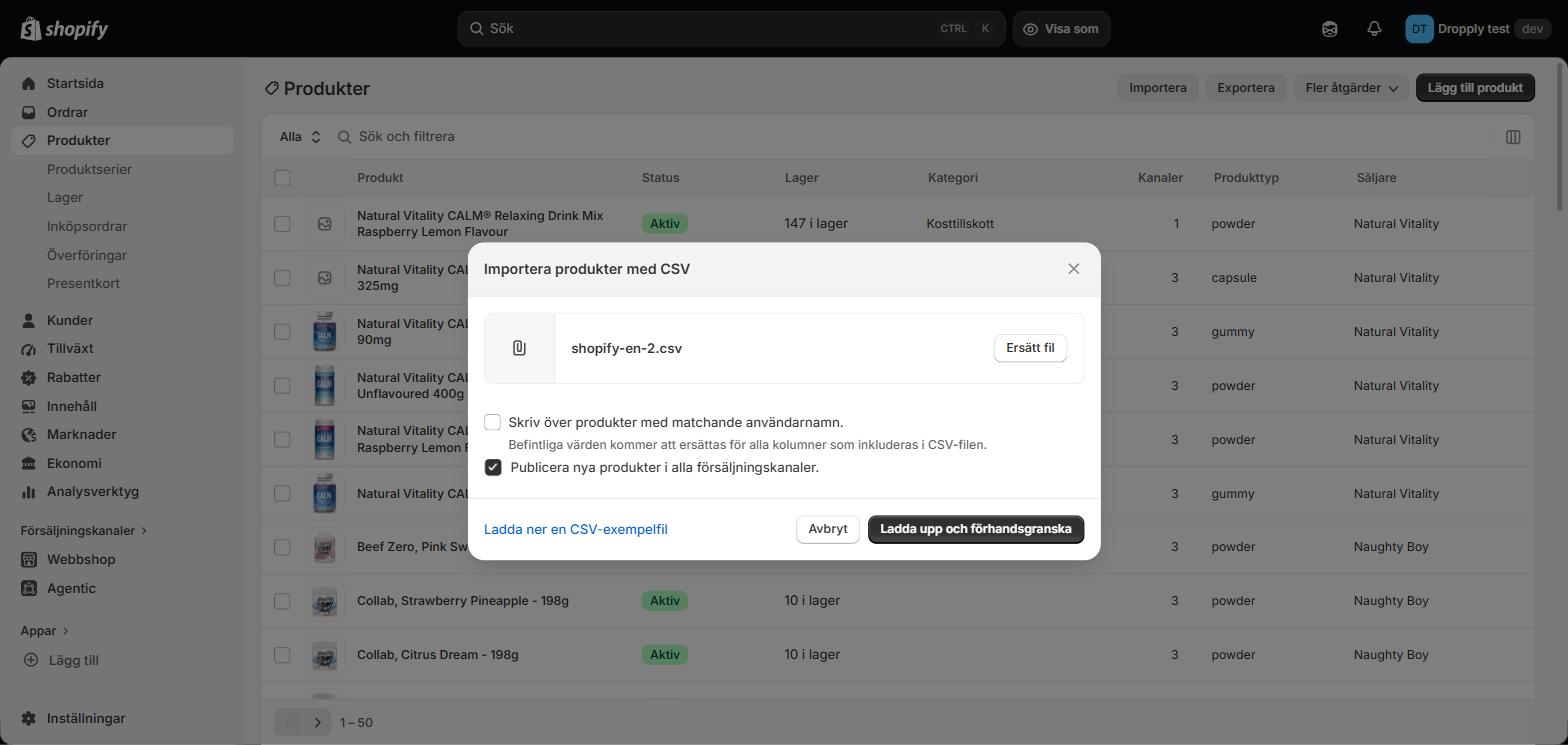
4. Read the preview before you press Import
Shopify counts the products, the stock keeping units and the images, and shows the first product in full. Check the description, the vendor and the price.
A warning about an invalid product category can appear. It does not mean the import failed, and it does not mean your categories were dropped — we have seen the warning shown on a file whose categories were all set correctly afterwards. Check a product page rather than the warning. Whatever Shopify does not recognise is simply left unset, and the category is on every product as a tag as well, so nothing is lost either way.
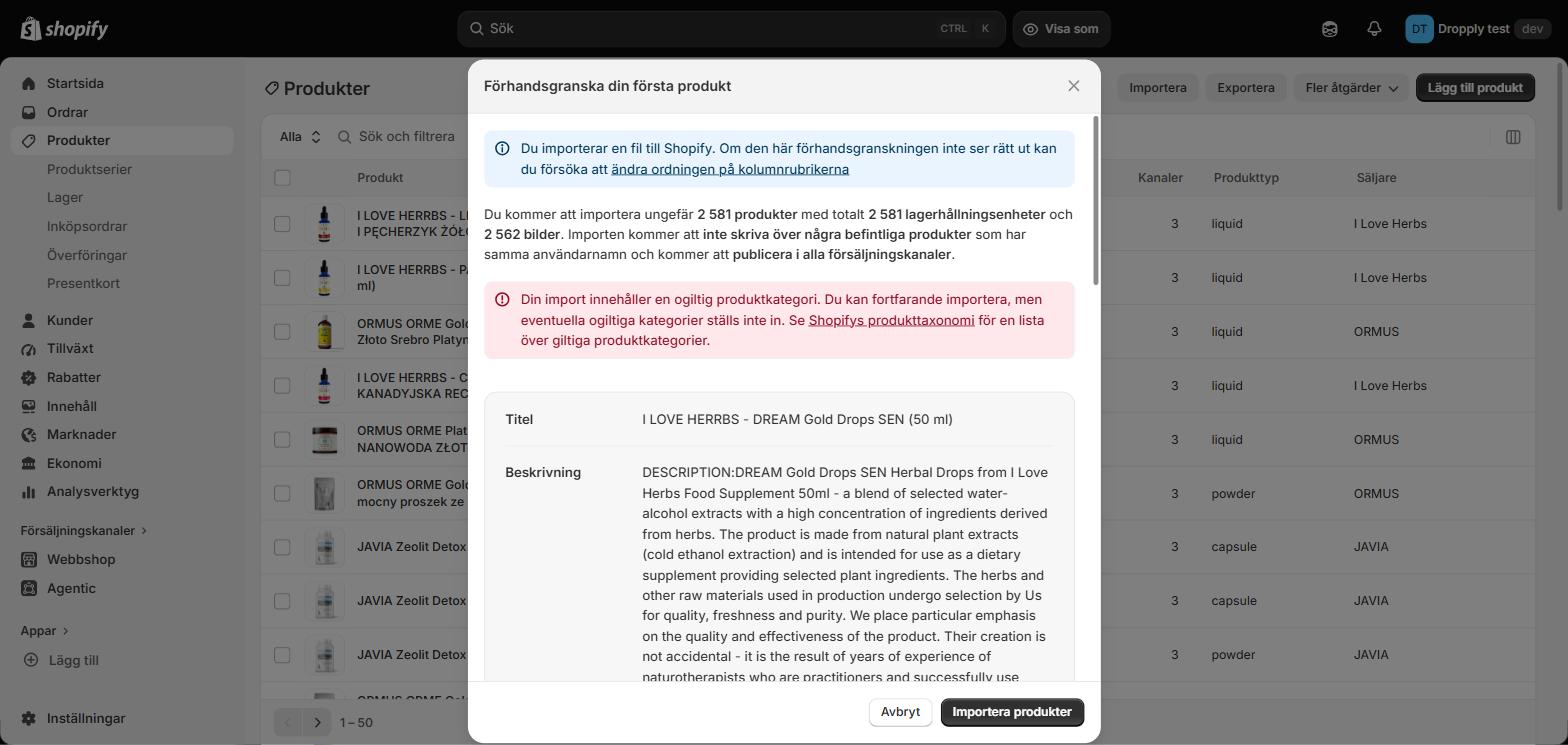
5. Import, wait, repeat
Press Import products. The dialog can be closed and the job keeps running. When products stop appearing, start again at step 1 with the next part.
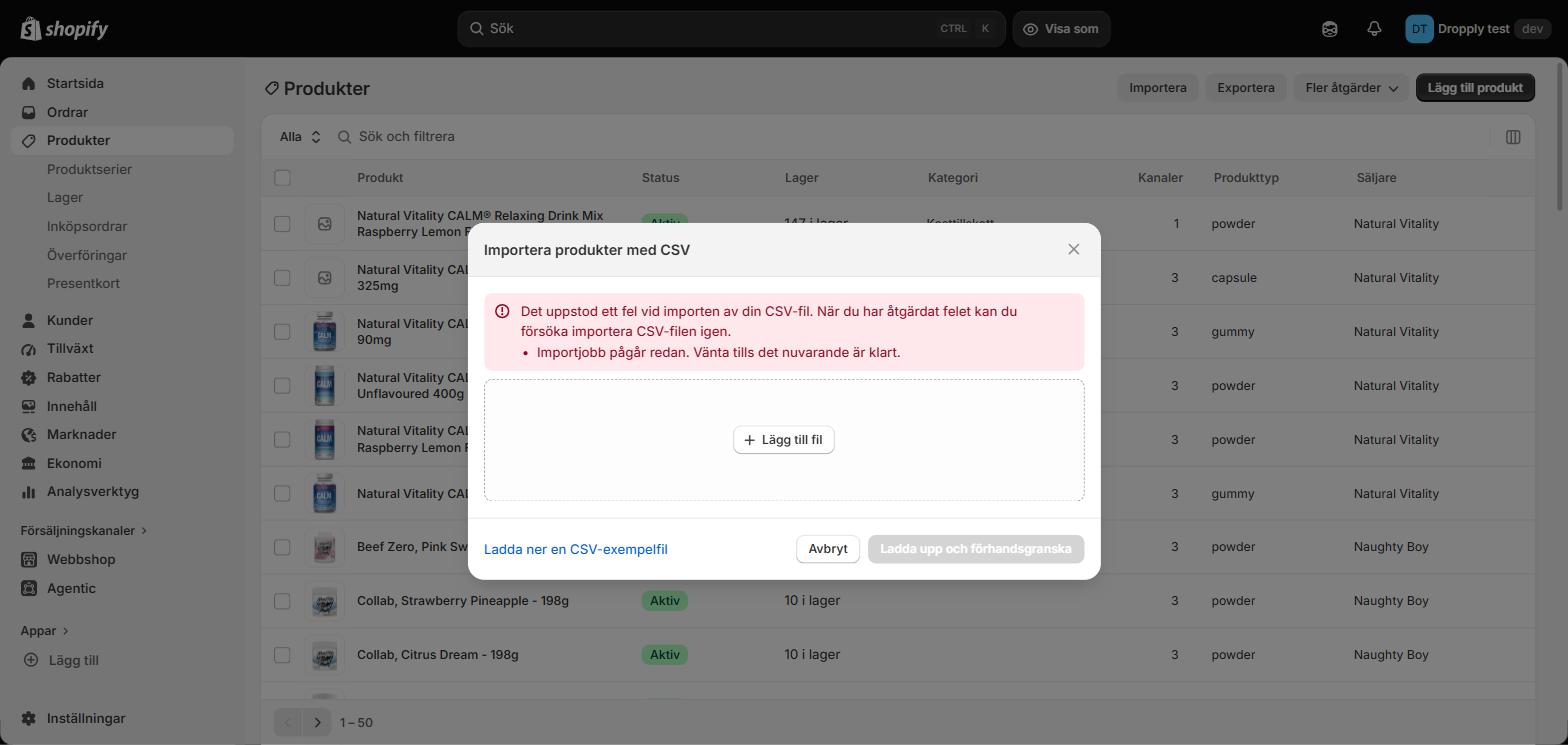
6. Check what arrived
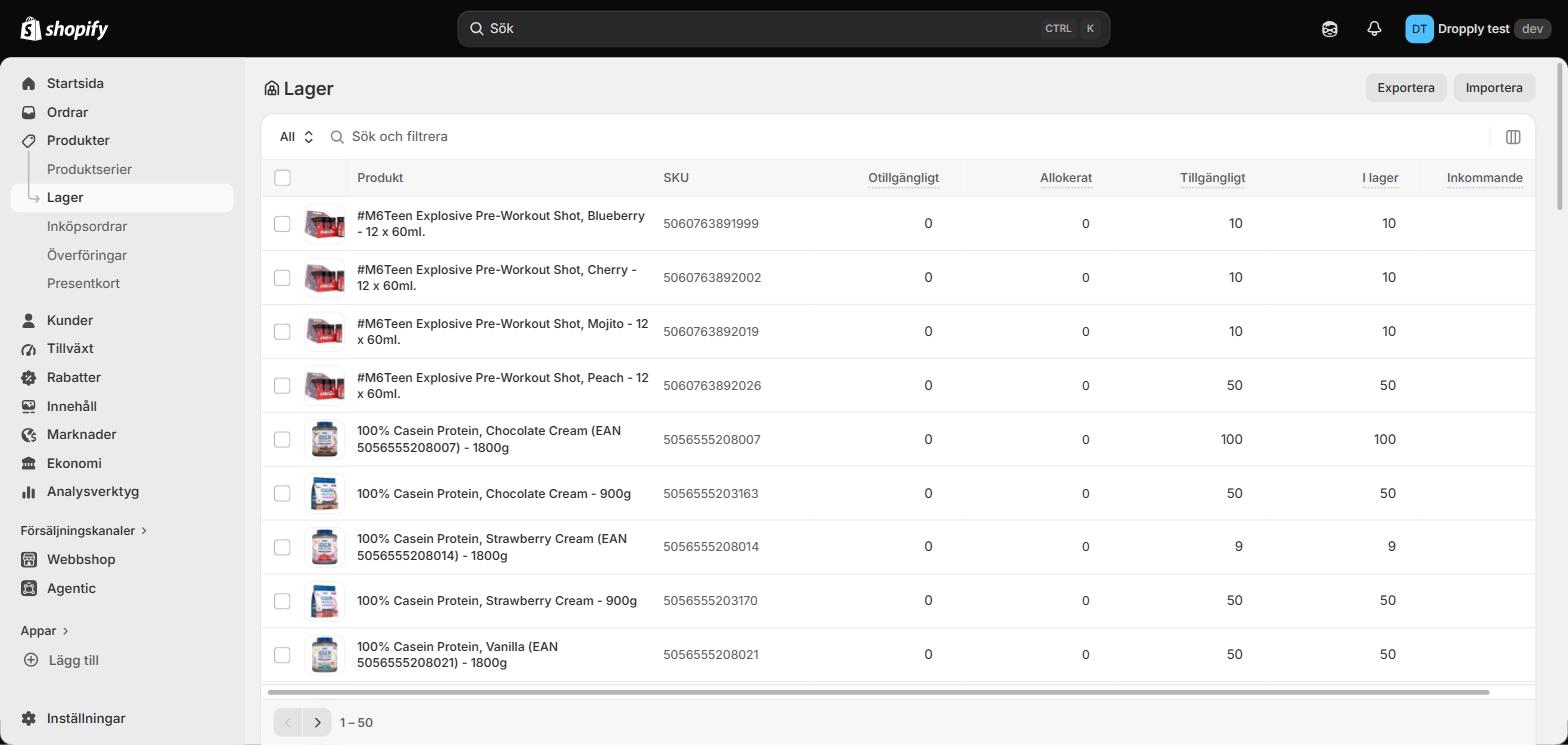
Products, then Inventory, shows the SKU and the quantity for each item. A quantity that is there means stock tracking came through: our file names Shopify as the tracker, so your shop counts down as you sell.
Keeping it current
The numbered parts exist only because of the 15 MB limit on manual uploads. A scheduled fetch has no such limit, so for updates use the single full link in an app that can fetch from a URL on a schedule.
Handles stay the same between fetches because they are built from the EAN. That is what stops an update from creating a second copy of every product.
If you do import by hand again, tick "Overwrite products with matching handles". It appears only once your store already has products and it starts unticked — leave it unticked and Shopify skips every product it already knows, which means nothing is duplicated and nothing is updated either. The preview says so in one line before you commit: it will not overwrite existing products with the same handle.
Fetch once a night. Stock and prices are current at the moment of the fetch.