
Importing the catalogue into WooCommerce
Download the file from your Feeds page and run it through WooCommerce's own product importer. Two settings have to be right before you start, or data is dropped without a word.
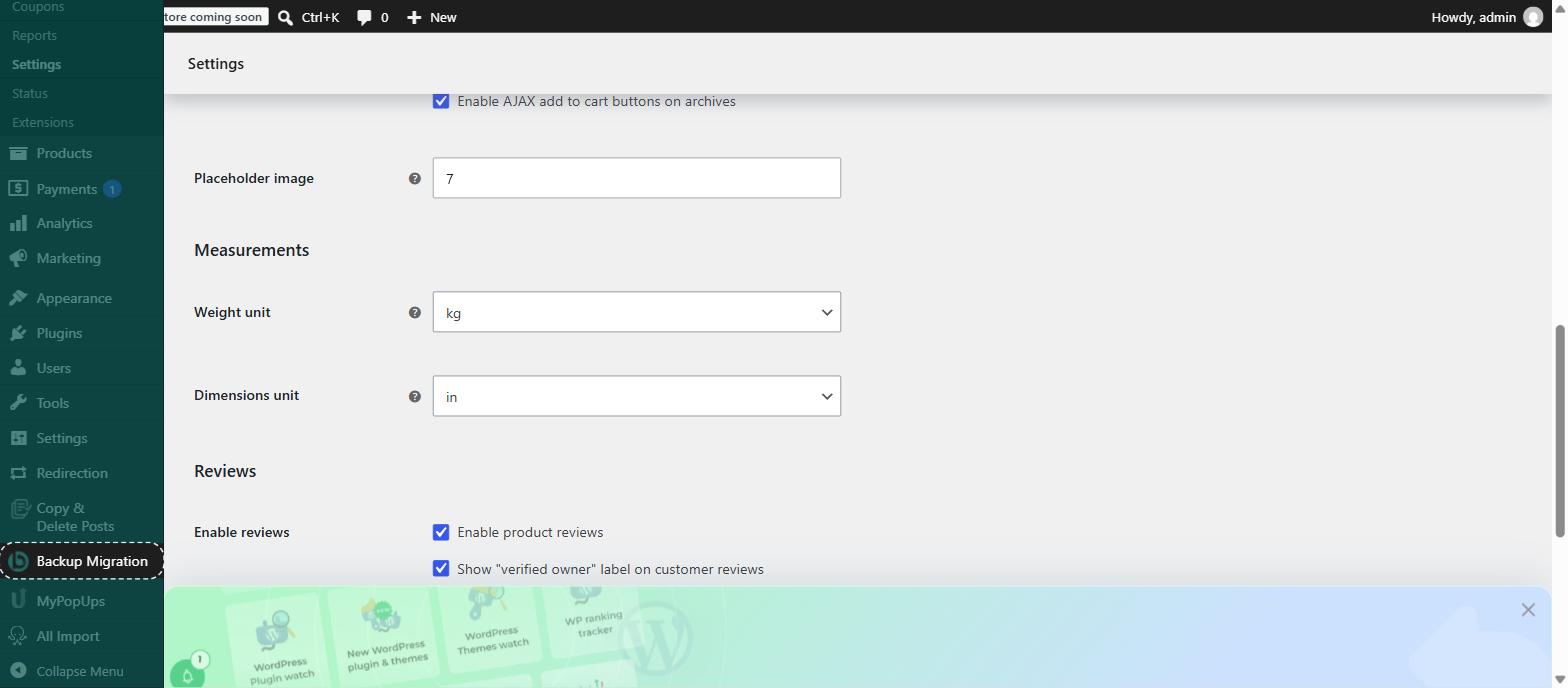
A new WooCommerce store measures in pounds. Our column is called Weight (kg), and WooCommerce only recognises the column that matches the store's own unit — so with the store in lbs the weight is dropped silently, and every product arrives weightless. WooCommerce → Settings → Products → Measurements → kg. Do it before the import, not after.
The file carries plain numbers. Your prices are in euro; a store left on its default currency will show them as dollars. WooCommerce → Settings → General → Currency.
Under Show advanced options there is a field for a path to a file on your server. Your feed address does not work there — WooCommerce answers "File path provided for import is invalid", which reads like a problem with the file and is not. Download the file first, then upload it.
Unlike Shopify, WooCommerce fetches every image during the import itself. That is why it takes a while: 2 468 products with images took about 11 minutes in our test. The whole English catalogue is around 6 900 products, so reckon with half an hour or so.
The import screen tells you the limit — ours said 60 MB, and the English file is about 26 MB. If your host allows less, split the file: any spreadsheet tool can cut it, and the only rule is that the header row has to be repeated at the top of each part.
1. Set the unit and the currency
WooCommerce → Settings → Products → Measurements, and set Weight unit to kg. Save.
Then WooCommerce → Settings → General and set the currency to EUR. Save.
Both of these are read at import time. Changing them afterwards does not go back and fix the products that already arrived.
2. Download the file from Feeds
Open Feeds in the portal and use the WooCommerce CSV link for your language. Save the file — this is the one you upload.
The address contains your key. Anyone who has it can read your prices, so treat it the way you treat a password.
3. Products → Import
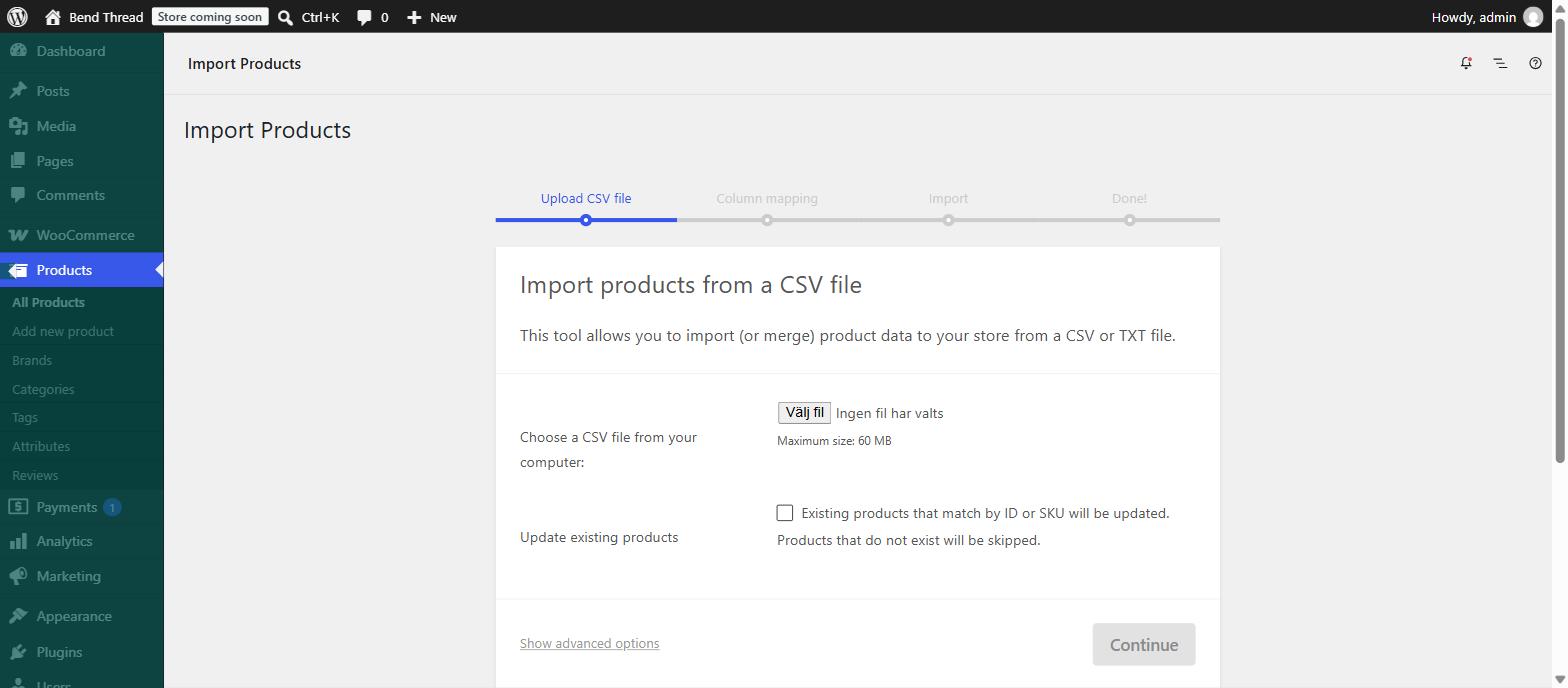
In WordPress: Products → All Products → Import, or go straight to the Import button at the top of the product list.
Choose the file you downloaded. Leave Update existing products unticked the first time — there is nothing to update yet.
4. Glance at the column mapping
WooCommerce shows every column in the file and what it will become. Almost all of them map themselves — SKU, name, description, price, stock, weight, categories and images.
One does not: GTIN, UPC, EAN, or ISBN sits on "Do not import". You can leave it, because the SKU column already carries the EAN. Set it if you want the field filled in as well.
If Weight (kg) is on "Do not import", your store is still in pounds. Go back to step 1 — importing now would give you a catalogue with no shipping weights.
5. Run the importer
Press Run the importer and leave the tab open. There is a progress bar, and it is honest.
When it finishes it tells you how many products were imported and how many failed. Zero failures is what you should see. If you get failures, the log link on that screen names the product and the reason — send us that text and we will tell you what it means.
6. Check what arrived
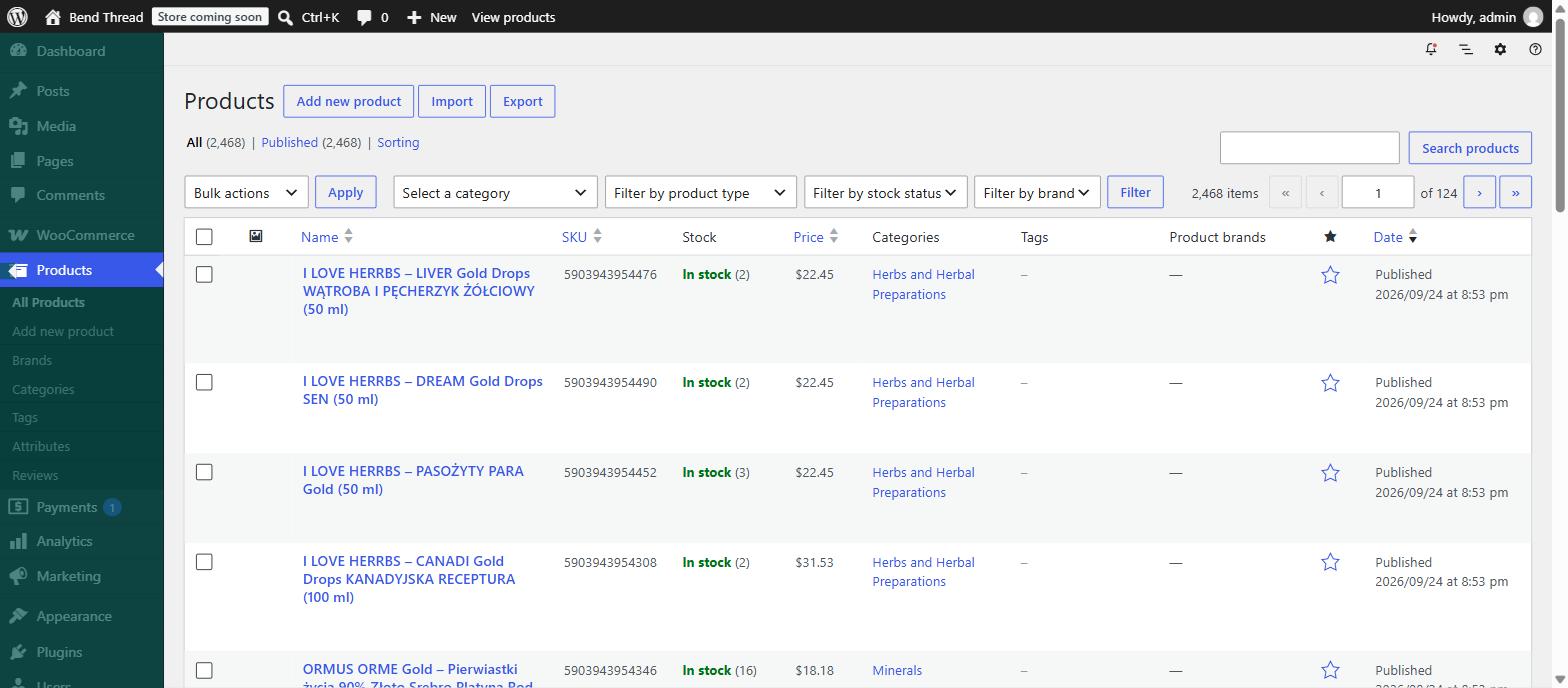
The product list should show the same number of products as the file has rows, with the EAN as SKU, a price, a stock figure and a thumbnail.
Open one product and check the Shipping tab: the weight should be there in kg.
Products with no category land under Uncategorized. That is our data, not your import — roughly half the catalogue has no category yet, and we are filling that in.
Keeping it current
Prices and stock change daily, so the file has to be fetched again. Importing the same file a second time with Update existing products ticked will match on SKU and update what is there instead of creating duplicates — the EAN is stable, which is what makes that safe.
Use the Stock & price file for that, not this one. It carries three columns instead of twenty-two, weighs 195 kB instead of 24 MB, and imports in under three minutes — and it cannot overwrite descriptions, images or categories, because it does not contain them.
There are three ways to keep it current, from paid-and-automatic to free-and-manual. They are set out in the Nightly updates guide on your Feeds page.